








Variant Miner – Virtual Box Install Instructions
- Download and install a Virtual Box platform package from https://www.virtualbox.org/wiki/Downloads for your specific operating system.
- Launch Virtual Box
- Configure Virtual Box Network
- Goto the Preferences menu
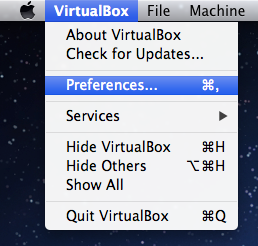
- Goto the Network tab and then Host-only Networks subtab
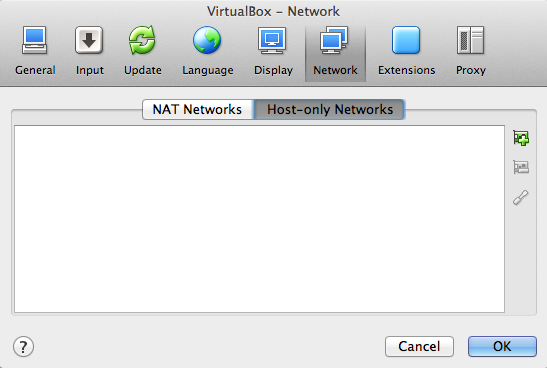
- Press Add Host Only Network button. You should see vboxnet0 show up in the window.
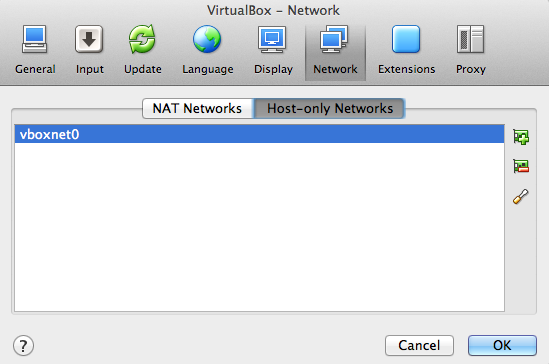
- Select the screwdriver to see the assigned IP address. Please note this: it will be needed in later steps.

- Press OK to close the preferences window.
- Goto the Preferences menu
- Download the Virtual Box Appliance file to your computer’s hard drive:
- Import Virtual Box Appliance
- Goto the Import menu
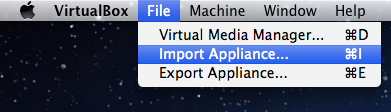
- Choose the Appliance File (has .ova file extension)
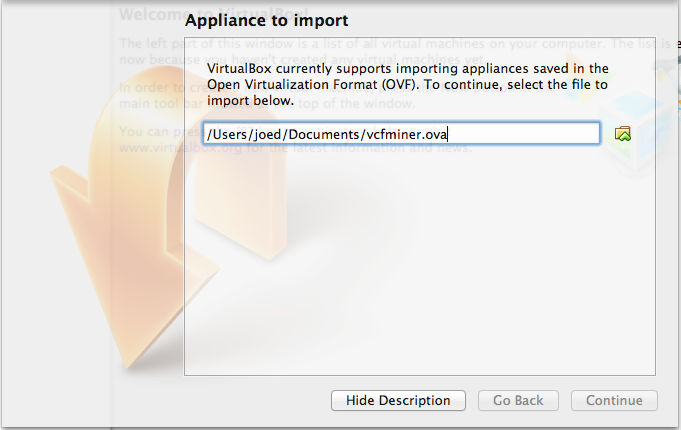
- Take default settings and press Import
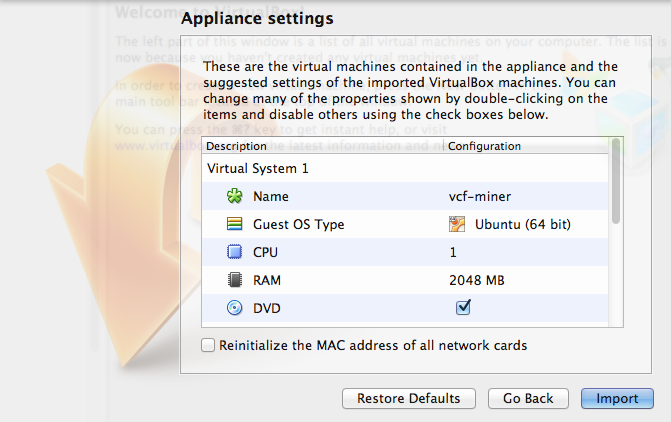
- Goto the Import menu
- Start the appliance. You will see a terminal open as the appliance OS boots. The Appliance is ready when you see the screen shown below. You may minimize this window.
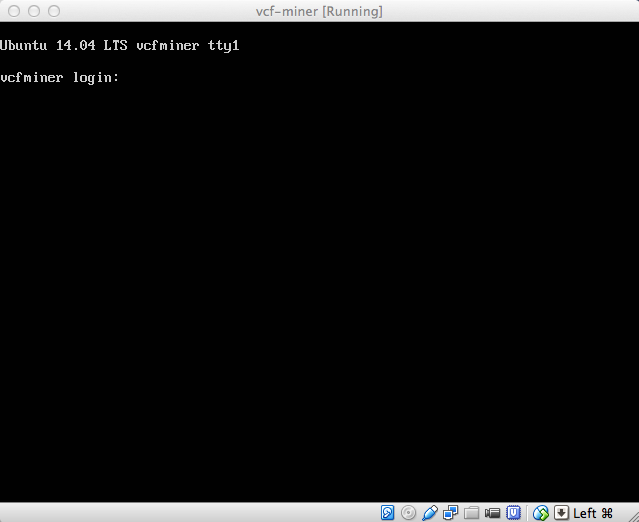
- Launch the VCF-Miner web interface by going to http://192.168.56.1:8888/vcf-miner/ (please substitute the IP address you noted in step 3d above).
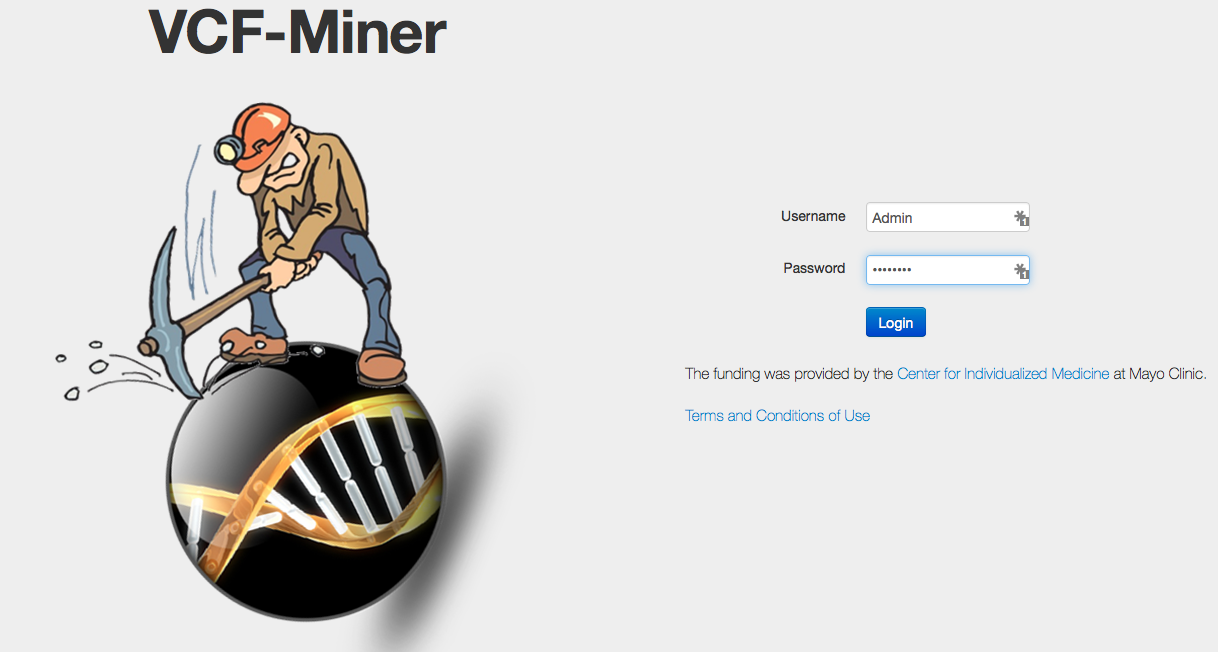
- The default login on a local install is username “Admin”, password “temppass”.
- For info on how to change this password (this should certainly be changed if installed on a shared server for multiple users), or for errors or user configuration see Login and User Configuration
Page last modified: November 17, 2023